Deploying Detached Migration
The Rules Palette has a tool that manages the deployment of a detached migration. This tool can only be used in the target environment, after a release package has been built. The rules that are only supported by Rules Palette migration process, will be supported in Detached Migration tool. The rules are:
- ServiceGroups
- FundProducts
-
AllocationModels
-
FundPlanStatuses
-
FundPlans
-
PlanBenefitFunds
-
PlanChildFunds
-
ProductParentFunds
-
Fund
-
AssetClassFund
-
AssetClass
-
IntakeProfile
-
ActivityFilters
-
Comments
-
PlanStateApproval
-
Masks
Steps to Deploy Detached Migration
-
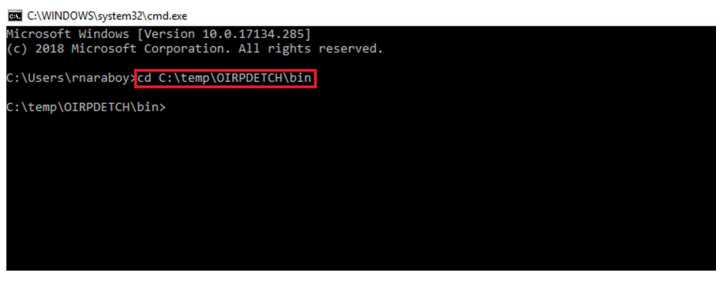
Keep palette Configuration web open, and launch the Command Prompt. Change the directory to bin folder of the extracted zip distribution (cd …\bin).
-
Run startup.bat file from command prompt.
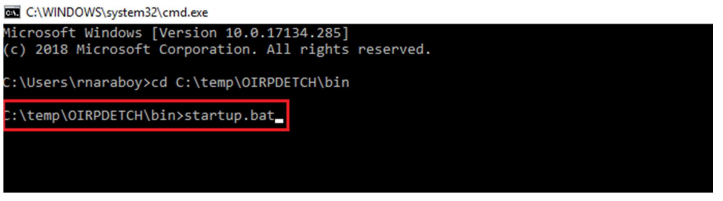
An error message appears in case of incorrect file name being entered or if the file is not present in the directory. In such cases, make sure that you enter the correct file name from the correct directory.
Note: The process gets suspended if the incorrect file name or directory is entered more than twice.
-
The command prompts for Palette Configuration web URL. Type the URL and press Enter to proceed.
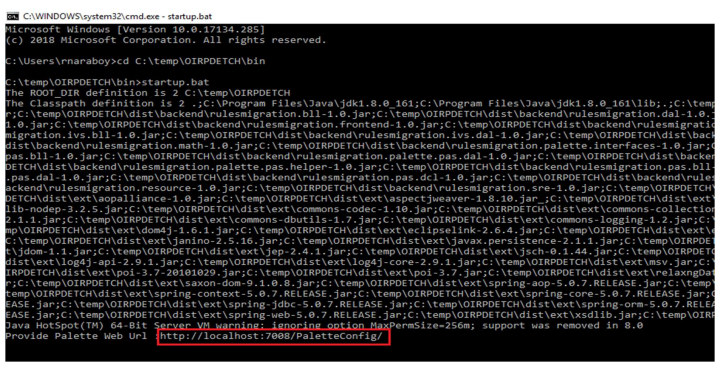
If incorrect URL is entered followed by palette log in credentials, the system throws an error message ('The system cannot find the specified environment'). The user has to enter the correct URL and try again.
Note: Press Ctrl+C to exit the process. The process gets suspended if the incorrect URL is provided more than twice and the command line starts with step 1.
-
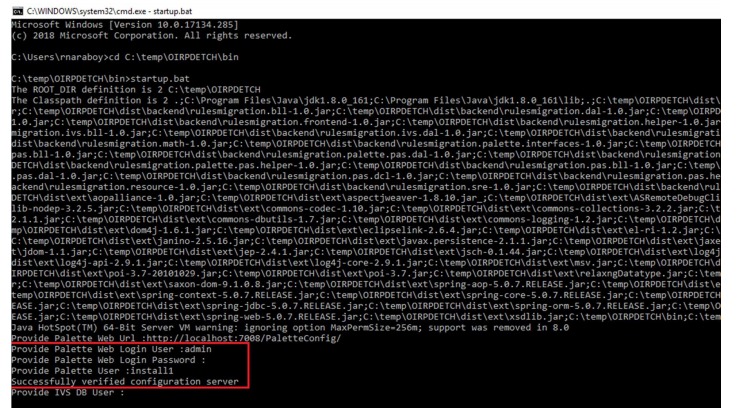
The command prompts for Palette Authentication credentials, as follows:
-
Provide Palette Web Login User
-
Provide Palette Web Login Password
-
Provide Palette User
Provide the credentials and press Enter to proceed. A message of successful server verification will appear.
Note: The passwords are always hidden in console and will not display when entering.
-
-
The command prompts for DB (IVS and Target DB) user name and password, enter the credentials if applicable and press Enter to proceed.
Note:
1. The passwords are always hidden in the console and will not be displayed while entering.
2. If IVS is not applicable, press Enter without providing the DB details to skip the step.
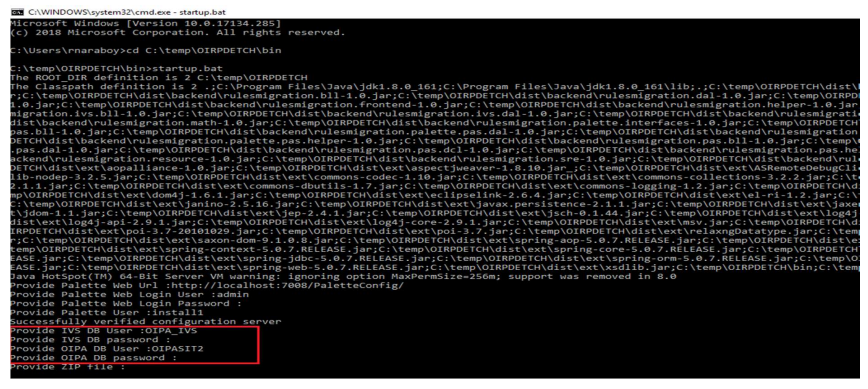
If incorrect authentication credentials are entered for Pallete Web Login or DB (IVS and Target DB), the system throws an error message("Access denied. The system could not connect to the configuration server") and prompts the user to re-enter the credentials. If the user enters the wrong credentials more than two times, the utility process gets suspended with a message and the Command line goes to 'Step 1'.
Note: To exit the process, press Ctrl+C.
-
The command prompts for the Zip file location. Provide the file path with Zip file name, and press Enter to proceed.
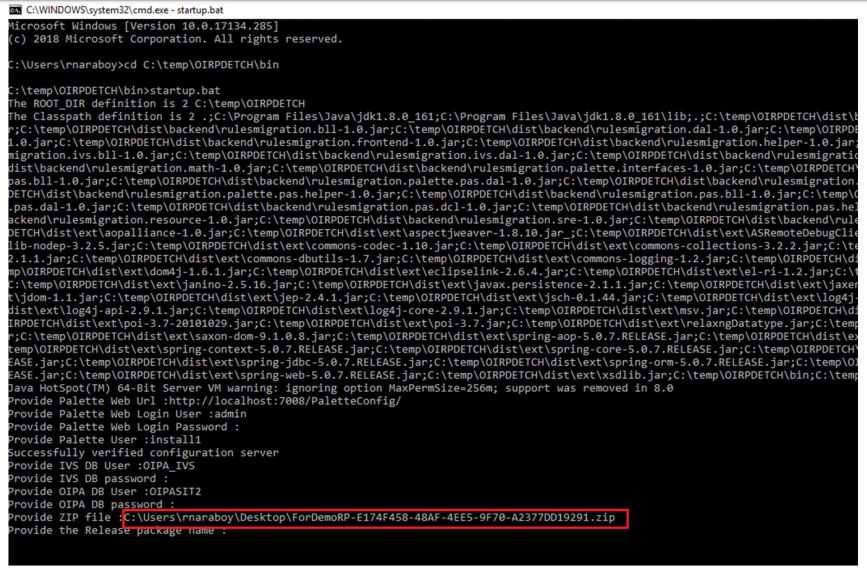
If incorrect directory address is entered for the .zip file, the system throws an error message ("The system could not locate the specified directory") and prompts the user to re-enter the directory address. If the user enters the wrong credentials more than two times, the utility process gets suspended with a message and the Command line goes to 'Step 1'.
-
Provide the Release package name, SCM value and comments respectively in the subsequent command prompts. Press Enter to proceed.
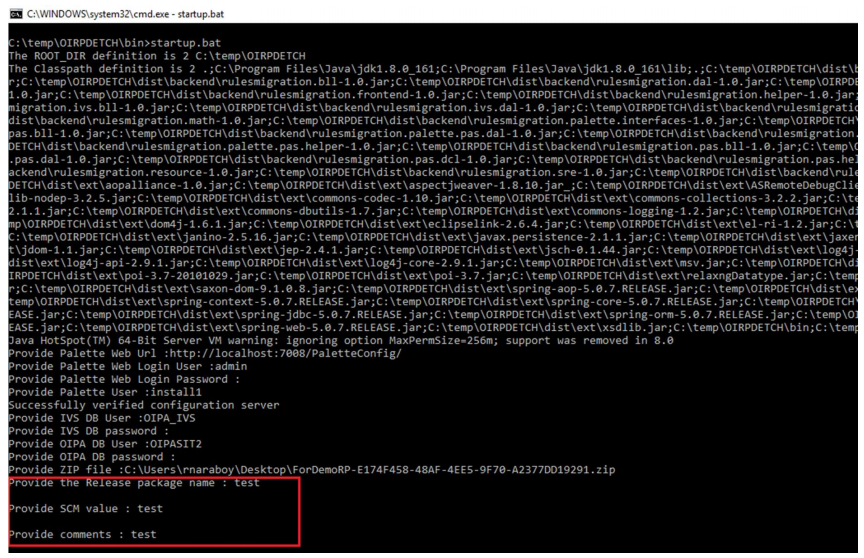
If incorrect credentials (release package name or SCM value) are entered for the .zip file, the system throws an error message ("Release Package authentication failed. Please enter the details again") and prompts the user to re-enter the credentials. If the user enters the wrong credentials more than two times, the utility process gets suspended with a message and the Command line goes to 'Step 1'.
-
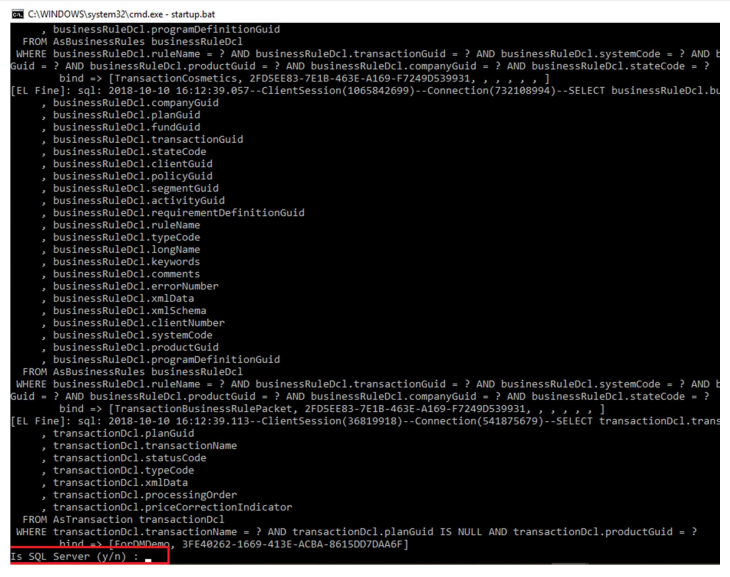
The command prompts to define if the target DB is SQL Server or not (y: Yes. n: no). Provide the value and press Enter to proceed.
A successful deployment message prompts after the completion of process.
.PNG "Success message")
In case of incomplete release package migration, the system throws an error message ("Incomplete Release Package Migration. Please re-initiate the process") and prompts to re-initiate the process. Incomplete release package migration may happen if:
-
The Target Database being down while in the middle of the process
-
The Release Package file is a corrupt file
-
The Utility faces any issue while deploying the configuration
-
-
Check if the Rules have migrated in IVS and Target DB. All DML scripts will be executed in the target database.